Dota2PornFx audio guide
Dota 2 Music Mod Guide: Install Packs, Test Audio, and Roll Back
Choose a named upstream pack, inspect its files, follow the current source instructions, and keep a clean rollback path when a Dota 2 update changes local audio behavior.

Dota 2 music mod: the safe short answer
A Dota 2 music mod is a local replacement for one or more tracks that the client loads from its sound files. It can change a menu loop, a battle track, or another named event, but it does not create an official music item and it does not guarantee that the same pack will survive the next game update.
Catalogue first
Use a named resource, preview, file type, date, and preserved upstream link before downloading.
One pack at a time
Change one track or pack, reproduce the same test, and keep other sound files untouched.
Rollback ready
Keep a clean backup and a short change log so a failed audio test is reversible.
Choose a Dota 2 custom music pack
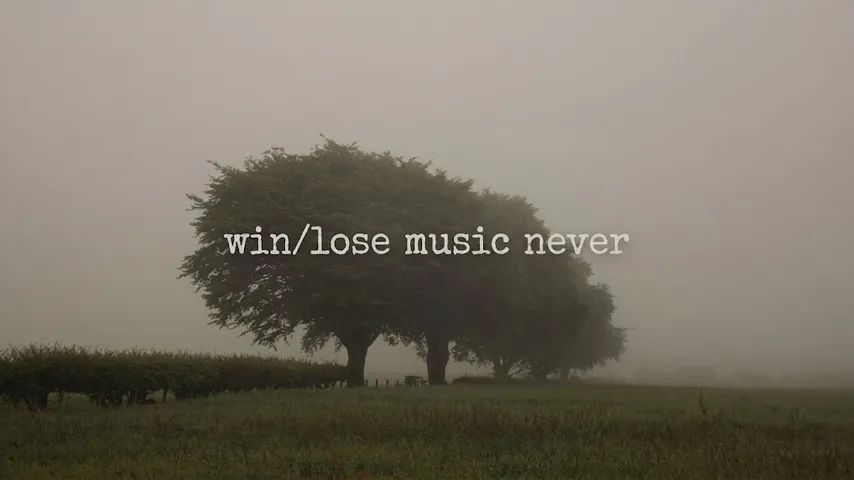
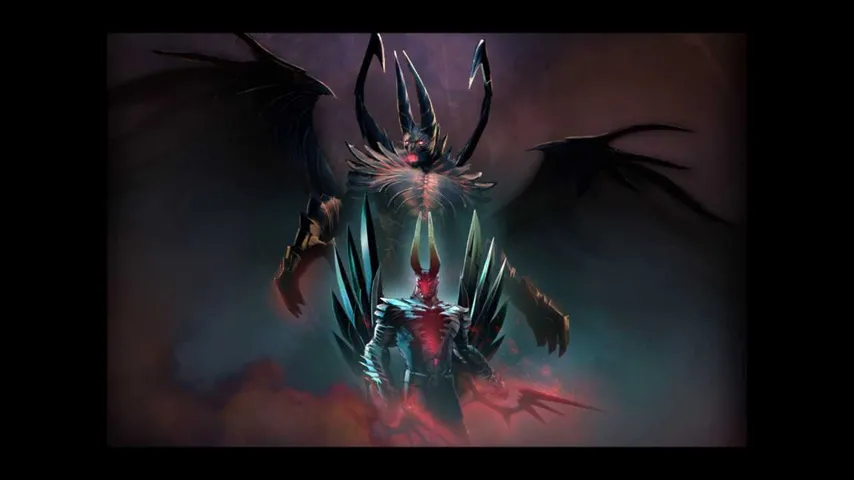
The Dota2PornFx music category is a catalogue of community ZIP and VPK resources, not a promise that every archive matches every client build. The current upstream check found three relevant additions: Terrorblade Arcana Music, Dark Carnival, and Win Lose Music Never. Their cards keep the original upstream download and preview patterns so you can compare the name and file type before opening an archive.
Music packs solve a different problem from an announcer pack or a hero sound replacement. An announcer changes spoken match calls, while a hero sound pack targets abilities, taunts, or voice events. If you only want quieter commentary, use the announcer volume guide instead of replacing music files.
- Open the music category and note the exact resource name, ZIP or VPK label, update date, and source link.
- Read any README or source notes before extracting files; do not assume a similarly named pack uses the same folder.
- Prefer one pack with a clear removal path over a bundle that overwrites several unrelated audio groups.
- Keep the original archive outside the game folder so you can compare or remove the installed copy later.
Inspect the archive before changing Dota 2 files
A ZIP may contain a ready-to-copy folder, a VPK package, or several files that belong together. Open the archive first and compare its top-level folders with the source instructions. If the archive contains a nested dota folder, do not copy both the outer and inner folders blindly; identify the path that the instructions actually describe.
Audio format and file naming also matter. Some older guides mention MP3, WAV, or WMV files and exact event names. Keep the extension, sample rate, and file name expected by the pack unless its current notes say otherwise. Renaming a track because the title looks right can leave the client with a silent or duplicate event.
| Check | Why it matters | Safe response |
|---|---|---|
| Archive structure | A nested folder can place files one level too deep. | Open the archive and match the documented target path. |
| File type | The client may expect a specific audio extension. | Keep the pack's supplied format unless current notes say to convert it. |
| Track name | The event name maps the replacement to a sound. | Copy the exact name; do not invent a new suffix. |
| Pack date | An old pack may target a retired file layout. | Check the source date and test it against a clean baseline. |
| Backup | A replacement can be hard to identify later. | Store the untouched files and write down the changed path. |
Use current source instructions instead of legacy launch flags
Many highly visible Dota 2 music tutorials were written years ago. They mention commands such as -override_vpk or -enable_addons, but a historical command is not proof that a current client accepts the same workflow. Follow the pack's maintained instructions and current Dota 2 behavior; do not paste several old flags together just because a forum guide lists them.
Before you activate a pack, close Dota 2, keep the backup outside the game directory, and note whether the source expects a language folder, a sound folder, a VPK, or a configuration file. Use one activation method, launch once, and record the result. If the source cannot explain how to disable the pack, treat that as a reason to stop.
- Close Dota 2 and Steam tools that may still be writing to the same game folder.
- Copy only the documented files and preserve the original directory structure.
- Apply the source's current activation step once; avoid stacking an old flag with a new method.
- Launch a simple menu or practice scene and confirm the named track before adding another pack.
Test the track and diagnose a Dota 2 music mod that is not working
Use a repeatable test: start from the same menu, load the same practice scene, or wait for the same event. If the music does not change, first check the active Steam library path and the exact folder from the source notes. A second library, nested archive, or duplicate pack can make a correct file look ineffective.
If the path is correct, compare the extension, track name, and pack date. Remove the newest change before trying a cache command or another replacement. Rebuilding an audio cache can be source-specific; do it only when the current instructions require it, and keep a clean backup because a cache refresh can hide which file caused the problem.
| Symptom | First check | Do not do first |
|---|---|---|
| Original music still plays | Confirm the active game path and exact event name. | Copying the pack into several folders. |
| The game is silent | Check extension, sample rate, and whether the archive is complete. | Converting every file without a source note. |
| Only one scene changes | Test the event that the pack documents. | Assuming one replacement covers every music cue. |
| The pack broke after an update | Disable it and test the clean client. | Reapplying an old launch command from memory. |
| Two packs interfere | Enable one pack at a time and record the result. | Changing both file names and load settings together. |
Roll back a music mod and restore clean audio files
To remove a pack, reverse only the files you can identify from your change log. Delete or move the replacement to a separate backup location, restore the original file, and launch once without other custom audio. Do not delete the entire sound folder just to make one pack disappear; that can remove files you never meant to change.
If official files are missing or the game still fails after your identified changes are restored, use Steam's installed-files verification as a recovery step. Steam verification checks the game installation; it is not a music mod manager and it may replace local changes. Back up anything you intentionally changed before running it.
- Close Dota 2 and move the newest replacement out of the game folder.
- Restore the untouched file or the clean backup recorded before installation.
- Launch once with no custom music and confirm that the base client works.
- Only then test a newer pack, using the original upstream source and a fresh change note.

Compatibility, account safety, and source limits
Dota2PornFx entries and community music packs are not Valve products. A successful local audio test does not prove that a pack is supported in every mode, safe for an account, malware-free, or compatible with a future patch. Do not use audio changes to hide gameplay information, and stop when a download asks for unrelated credentials or has no identifiable source or removal path.
Dota 2 music mod FAQ
Continue with Dota 2 mod guides
Sources and freshness check
- Dota2PornFxWeb upstream repository — Source catalogue checked on 2026-11-05 for the music entries and preserved download paths.
- Steam Community: Modifying Dota 2's Main Theme and More — Historical community guide used to identify common music-mod questions; its old commands are not treated as current compatibility proof.
- Steam Support: Verify Integrity of Game Files — Official recovery reference for checking installed game files after identified local changes are restored.