Dota2PornFx / Installation guide
Dota 2 Mods Installer: How to Install VPK, ZIP & Manual Mods
A practical path for choosing a Dota 2 mods installer without treating community files as official cosmetics. Compare Mod Manager, VPKTool, VPKMerge, and manual installation before changing the game folder.
Which Dota 2 mods installer path fits?
A Dota 2 mods installer can mean a library manager, a VPK utility, a package merger, or a manual ZIP workflow. Use Mod Manager when you want catalog search and reversible tracking; use VPKTool when you need to inspect a container; use VPKMerge only for compatible packages; and follow manual instructions when a mod names exact folders. None of these tools creates an official Steam cosmetic.
Mod Manager
Best for catalog browsing, one-click installs, library tracking, and disabling a mod while testing.
VPKTool
Best for opening or packing VPK containers so you can inspect paths before changing files.
VPKMerge or manual
Best when package instructions require a merge or name exact folders to extract from a ZIP.
Choose the right installer path
Match the installer to the file you downloaded and the level of control you need. The upstream Tools category keeps the original source links; check the release or repository before running an executable.
| Path | Use it when | Verify first |
|---|---|---|
| Mod Manager | You want a searchable catalog and a managed library | Game path, release source, conflicts, and rollback |
| VPKTool | You need to open or pack a VPK | Internal paths and the package target |
| VPKMerge | Two compatible VPK packages must be combined | Matching instructions and non-overlapping intent |
| Manual ZIP | The source guide names exact folders | Archive contents, backup, and extraction path |
Safe install workflow
Treat community mods as version-sensitive local file changes. A short backup and test loop makes it easier to identify the package that caused a visual error, crash, or missing asset.
- Read the source page and confirm the category, file type, preview, and update date.
- Keep the downloaded VPK or ZIP outside the game folder until you have inspected it.
- Back up the original folder or use the manager's reversible library before installing.
- Close Dota 2, install one package, and test the exact hero, item, screen, or terrain it should affect.
- If the result is wrong, disable or remove the new package and restore the clean backup before trying another mod.
Use Dota 2 Mod Manager
The open-source Dota 2 Mod Manager is the closest fit when you want a catalog-driven installer instead of copying files by hand. Confirm the detected Dota 2 path, review the mod preview and category, install one change, and use the Library screen to disable or remove it when testing conflicts. Check the separate v2.3.0 release page for the current verified builds.
Before install
Confirm the real game path and keep Steam file verification available.
During testing
Change one mod at a time and record what the library enabled.
After a patch
Start from a clean baseline and recheck every package.
Inspect VPK and ZIP files
VPKTool is useful when a download contains a Valve Pak archive and you need to see its internal paths or repack a controlled change. For a ZIP, inspect the top-level folders before extracting. A preview image is not proof that every file inside an archive belongs in the same destination.
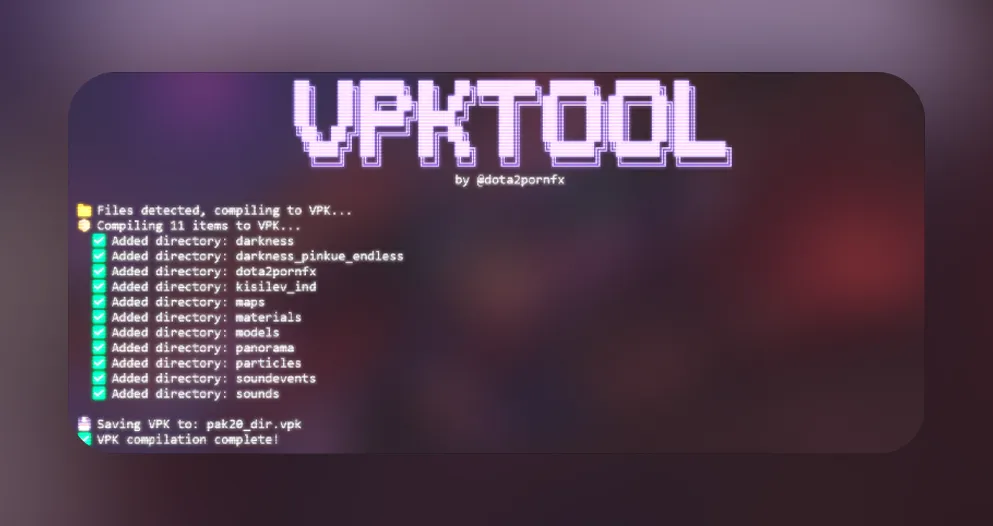
- Compare the internal path with the installation instructions.
- Do not overwrite the original game files while you are still inspecting the package.
- Keep the original archive so you can remove or compare the change later.
Merge compatible VPK packages
VPKMerge is for combining packages that are known to target compatible paths. Merging does not resolve conflicts automatically and can make rollback harder, so keep the original VPK files and a record of the output package. If instructions do not explicitly require a merge, test the packages separately first.
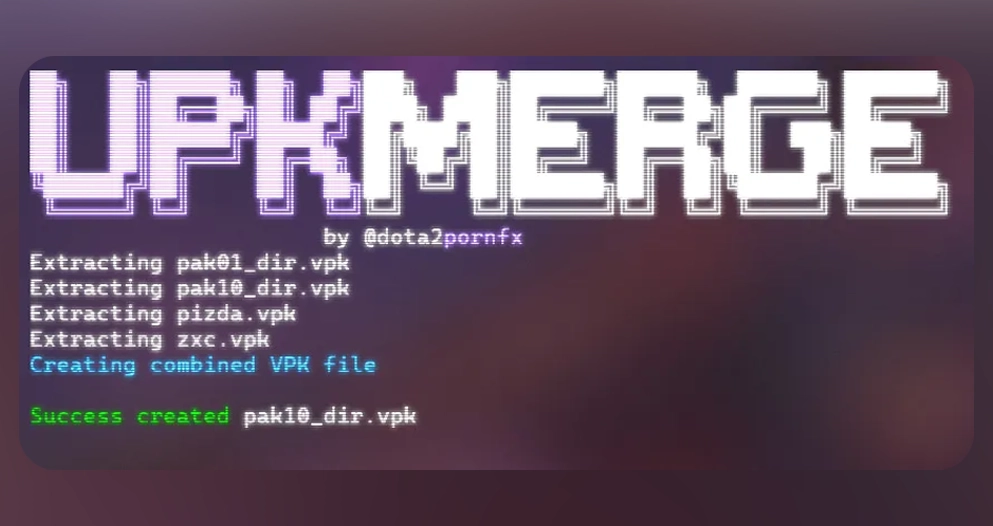
- Read both package instructions before merging.
- Keep a copy of each original VPK and name the merged output clearly.
- Test the merged result alone before adding another package.
- Remove the merged output and return to the originals if the game behaves unexpectedly.
Troubleshoot and roll back
When a Dota 2 mod stops working, first restore the last known clean state instead of stacking another fix. Patches can change asset paths, load order, or compatibility, and a tool warning is not a guarantee that a package is safe.
- Disable the newest mod and reproduce the problem with the rest of the library unchanged.
- Verify the game files through Steam when the baseline itself is uncertain.
- Check whether the package is a VPK, ZIP, tool, or information-only link before choosing the next step.
- Use the upstream release or source page rather than an unknown mirror.
- Record the working package and date so a future Dota 2 update can be tested from the same baseline.
Dota 2 mods installer FAQ
Continue with Dota 2 mod guides
Sources checked
- Dota2PornFxWeb source repository — Upstream mods, tools, previews, categories, and original download destinations checked on August 16, 2026.
- Dota2PornFxWeb Tools category — Verified source previews used for the hero, VPKTool, and VPKMerge visual points.
- VPKTool repository — Upstream VPK extraction and packing tool source.
- VPKMerge repository — Upstream VPK merge tool source.
- Dota 2 Mod Manager — Community Windows manager source and release history; use its separate v2.3.0 guide for verified downloads.