Dota2PornFx configuration guide
Dota 2 Minimap Icons: Colors, Size, and Config Steps
Use a small autoexec.cfg file to make minimap markers easier to read, test one change at a time, and keep a rollback path when Dota 2 updates alter local settings.
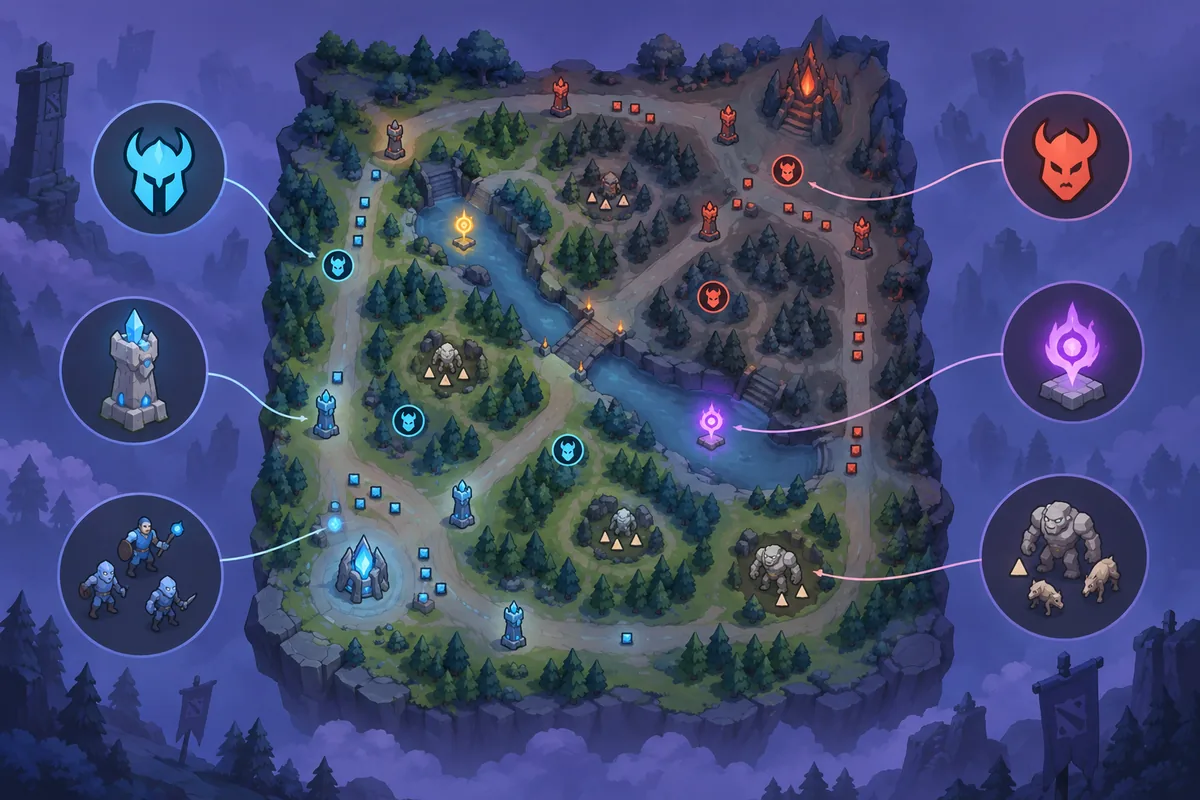
Quick answer: how do Dota 2 minimap icons work?
Dota 2 minimap icons are the small visual markers that help you read allies, enemies, creeps, runes, towers, and other map information. If a marker is too small or the default colors blend into the map, a local configuration can make the important signals easier to see. The upstream Dota2PornFx guide lists four practical console variables: ally color, enemy color, rune size, and creep scale.
The most controlled approach is to place those commands in autoexec.cfg, load the file through a launch option, and test one variable at a time. This is a configuration experiment, not an official Dota 2 feature or a guaranteed competitive advantage. Keep a copy of the original file, use conservative values first, and remove the command if the client behaves differently after a patch.
Colors
Change the RGB values used for friendly and enemy markers so the two sides remain distinct on your map.
Scale
Increase rune or creep marker size when small symbols are hard to read at your normal zoom.
Rollback
A backup copy and a clean launch test let you return to the default view without guessing which line caused a problem.
What Dota 2 minimap icon settings actually change
The commands below affect how certain map signals are drawn on your client. They do not replace hero models, item icons, terrain files, or VPK packages. That distinction matters because a minimap configuration belongs in the game configuration workflow, while a visual mod belongs in a separate file and install workflow. Do not mix the two while troubleshooting.
| Setting family | Visible result | What it does not do |
|---|---|---|
| Ally and enemy color | Makes the two teams easier to separate at a glance | It does not change team identity, hero portraits, or game rules |
| Rune size | Makes rune markers occupy more or less visual space | It does not create runes or reveal hidden map information |
| Creep scale | Changes the size of creep markers on the minimap | It does not change creep strength, spawn timing, or pathing |
| autoexec.cfg | Loads the selected commands at launch | It is not a mod installer and should not be treated as a download |
Use the smallest change that solves your reading problem. A bright color can be useful on a dark map but distracting on a pale map; a very large rune marker can hide nearby information. The goal is legibility, not maximum intensity. Take a screenshot of your default view before editing so you have a simple reference when comparing results.
Create autoexec.cfg for Dota 2 minimap icons
The upstream Minimap Icons guide places the configuration in the Dota 2 cfg directory: Steam\steamapps\common\dota 2 beta\game\dota\cfg. The exact Steam library drive can differ, so open your own Dota 2 installation and confirm that the folder belongs to the current client before saving anything.
- Close Dota 2 before editing the file. Keeping the game closed avoids testing a stale process or overwriting a change while you work.
- Open the game's cfg folder and create a plain text file named autoexec.cfg. Check that Windows has not silently added a second .txt extension.
- Add the minimap commands you want to test, one command per line. Keep the trailing semicolon shown in the upstream examples.
- Add +exec autoexec.cfg to Dota 2 launch options so the client loads the file when it starts.
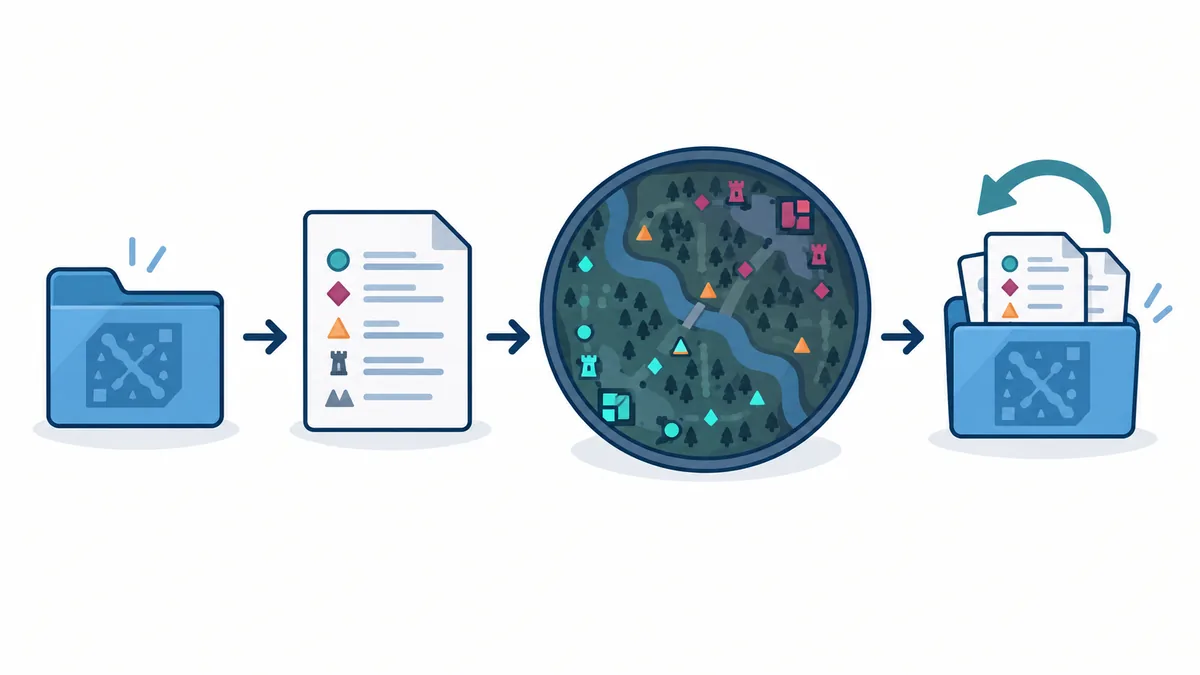
If you prefer not to edit launch options, you can keep the file as a reference and enter the same commands through the client console when appropriate. The autoexec approach is easier to reproduce, but it also means every launch can reload a value you forgot about. Keep a short comment in your own notes describing what each line is intended to change, and remove old experiments instead of allowing a long list to grow.
Dota 2 minimap icon commands for colors and size
These examples are transcribed from the upstream Minimap Icons guide checked for this page on 2026-10-08. RGB color values use the familiar 0–255 range. Start with moderate values and write down your original line before changing it; a command can be valid yet still look uncomfortable on your monitor.
| Purpose | Example line | How to tune it |
|---|---|---|
| Friendly marker color | dota_friendly_color 255 255 0; | Change the three RGB numbers together and keep the result easy to distinguish from enemy markers. |
| Enemy marker color | dota_enemy_color 255 0 255; | Choose a contrasting hue; avoid a color that disappears into the map terrain or ward icons. |
| Rune marker size | dota_minimap_rune_size 500; | Increase or reduce the number in small steps and check whether nearby markers remain visible. |
| Creep marker scale | dota_minimap_creep_scale 1.3; | Try a modest decimal change first; a very large scale can make the minimap feel crowded. |
The values are examples, not a promise that every patch will interpret them identically. If a command has no visible effect, confirm that autoexec.cfg loads, check for spelling or extension errors, and retest with a single line. Do not infer from one failed launch that the whole Dota 2 installation is damaged. First remove the newest line, launch cleanly, and compare the default view.
- Use a readable contrast pair for allies and enemies rather than two bright colors that compete with each other.
- Adjust rune size before creep scale if your main problem is finding objective timings.
- Keep the command table in your notes so you can reproduce a known-good setup after reinstalling Steam or moving the library.
Test Dota 2 minimap icons and roll back cleanly
A useful test isolates the configuration from unrelated mods. Start with the normal Dota 2 client, then add autoexec.cfg, then inspect the map. If you already use hero skins, terrain replacements, HUD packages, or VPK tools, temporarily leave those changes alone while you evaluate the minimap. Several simultaneous edits make it impossible to identify the cause of a visual glitch.
- Record the date, Dota 2 patch state, command lines, and values you tested.
- Back up autoexec.cfg before every major edit and keep a clean copy with no experimental commands.
- Check the main menu and a practice session, then verify that the minimap still communicates allies, enemies, creeps, and runes without clutter.
- If the client starts oddly, the minimap becomes unreadable, or a command stops working after an update, remove the newest line and launch again.
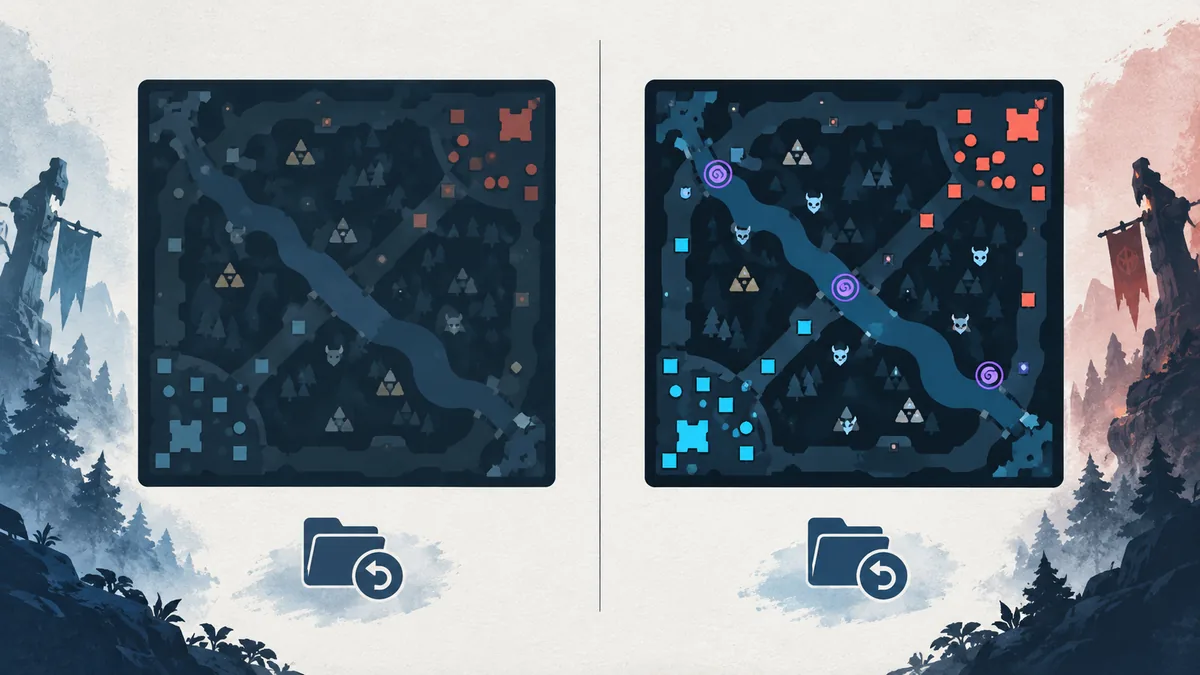
The upstream catalogue also contains VPK and ZIP resources for icons, HUDs, heroes, and terrains. Those downloads have different installation paths and compatibility risks. If your goal is to replace an asset rather than recolor or resize a marker, follow the relevant guide instead of placing a VPK command in autoexec.cfg. The separate VPK explanation and mod-manager pages linked below help keep those workflows distinct.
Limits, compatibility, and a safe-use checklist
Minimap commands are local configuration examples from a community guide. They are not an official Valve support promise, and they may stop working, change behavior, or be reset when Dota 2 updates its client files. The command names and example values are preserved here so readers can understand the upstream method, not so the page can guarantee a current result for every account or patch.
| Before editing | Before keeping the change |
|---|---|
| Confirm the cfg path belongs to your current Dota 2 install | Confirm the minimap remains readable in more than one context |
| Save a clean autoexec.cfg copy | Write down the values and patch date |
| Test one command at a time | Remove the line if it creates confusion or stops loading |
| Read the upstream source notes | Restore files and use Steam verification when a clean rollback needs help |
Treat the page as a reproducible checklist: use a known path, make one reversible change, observe the result, and preserve a clean baseline. If you need a community asset, open the upstream resource card and keep its original download link. Dota2PornFx.blog is a fan-made index and is not affiliated with Valve, Steam, or Dota 2.
Dota 2 minimap icons FAQ
Continue with related Dota 2 pages
Sources checked
- Dota2PornFxWeb Minimap Icons guide — Upstream guide checked on 2026-10-08 for the cfg path, launch option, color variables, rune size, and creep scale examples.
- Dota2PornFxWeb live catalogue — Live upstream source checked for the community catalogue context and original resource links.
- Steam Support: verify game files — Official recovery reference when a clean rollback still needs file verification.