Dota2PornFx cursor resource guide
How to Change the Cursor in Dota 2: Cursor Packs and Install Steps
Compare real upstream cursor previews, choose one ZIP, install it as a reversible local change, and fix the common problem where the mouse cursor leaves the Dota 2 window.
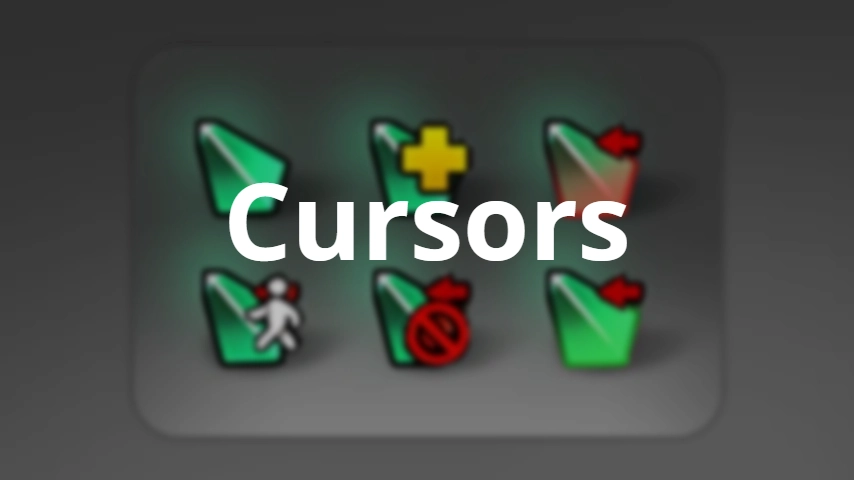
Quick answer: how to change the cursor in Dota 2
To change the cursor in Dota 2, download one cursor pack from the Cursors category, keep the ZIP outside the game folder, follow the package instructions, and test the menu plus a bot match before adding anything else. A cursor pack is a local visual replacement; it does not add an official Steam item or change gameplay.
The safest route is reversible: compare the preview, record the original files, install only one pack, check the cursor on light and dark screens, and restore the clean client if the pointer disappears, doubles, or escapes the window.
Local visual change
A cursor pack changes local interface assets on your computer; it is not an official Dota 2 inventory cosmetic.
Preview first
The preview helps you compare scale, contrast, and style, but it cannot prove compatibility with every client patch.
One-pack test
A single package makes it much easier to identify a bad file and roll back without guessing which mod caused the problem.
Choose a Dota 2 cursor pack by preview and file
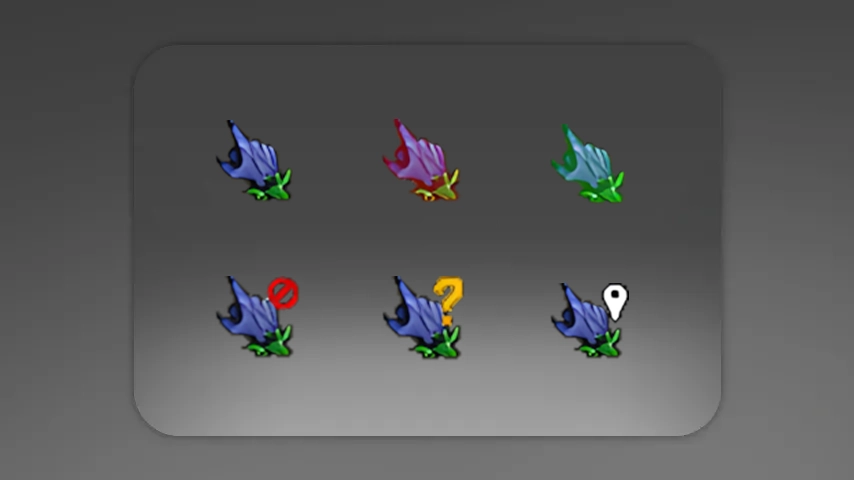
Start with the visual result you want. The upstream Cursors catalogue includes Purple Demon Cursor, Night Elf Cursor, and Demon Cursor among other community packs. Compare the pointer shape and contrast against the screenshots before you download.
Every resource card keeps the original upstream ZIP link. Check the file label and update date separately from the artwork: a nice preview is only a design reference, not a compatibility promise.
How to read a cursor preview
A cursor preview is useful for selection, especially when the package name is vague. Look for a pointer that stays visible over dark terrain, bright menus, shop panels, and the minimap. Do not mistake a static preview for a live gameplay screenshot or assume that a cursor shown in one resolution will feel identical on your monitor.
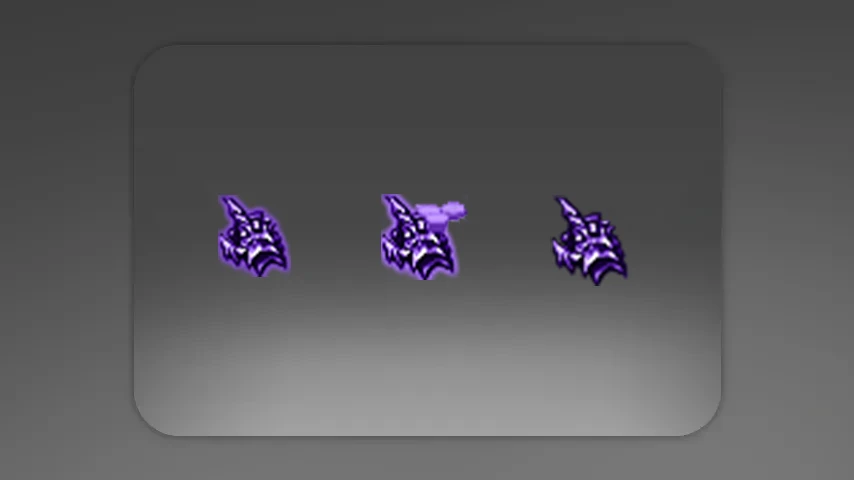
- Compare pointer size and contrast, not only color.
- Confirm the ZIP name matches the preview you selected.
- Treat the update date as a freshness clue, not a guarantee after a Dota 2 patch.
- Keep the original archive so you can compare or restore it later.
Install one cursor pack safely
The exact destination depends on the package. Some archives contain a VPK, while others include folders or a readme. Open the ZIP before copying anything, follow the upstream instructions for that file, and never stack a cursor, HUD, font, and skin change during the first test.
| Step | What to do | Why it matters |
|---|---|---|
| 1. Back up | Copy the original target files or keep a clean game backup outside Steam. | Rollback is faster than reconstructing overwritten paths. |
| 2. Keep the ZIP | Store the downloaded cursor pack outside the Dota 2 folder. | You retain the source file and can inspect it again. |
| 3. Install one pack | Use the package readme and preserve its folder structure. | One change makes conflicts easier to diagnose. |
| 4. Test | Open the menu, settings, a demo or bot match, and the scoreboard. | A client can launch while a cursor is still missing or misplaced. |
Keep the cursor inside the Dota 2 window
If the mouse cursor leaves the game, first separate the window behavior from the cursor pack. Test the clean client or a borderless/fullscreen mode, then check display scaling and your monitor resolution. A cursor pack cannot repair a window-management problem, and an old launch option should not be blamed on a visual ZIP without a separate test.
- Test your normal resolution and a second window mode.
- Check whether the pointer escapes only after Alt-Tab or on every screen.
- Confirm clicks still land on the shop, minimap, inventory, and chat.
- Remove outdated launch or console tweaks before judging the cursor archive.
Test the pack after installation and after patches
A cursor can look correct in the home screen and still fail in a bot match. Test the pointer over light and dark panels, hero selection, shop, minimap, scoreboard, chat, pause controls, and spectator elements if you use them. After a major Dota 2 patch, start from the clean client before reinstalling the same pack.
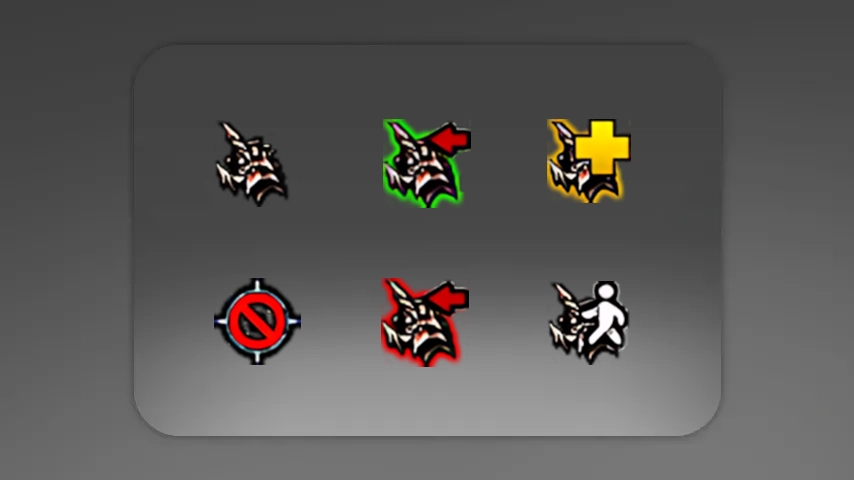
- Check that the pointer remains visible over bright and dark UI.
- Look for a duplicate, invisible, oversized, or offset cursor.
- Test clicks, drag actions, hotkeys, shop panels, and the minimap.
- Do not install a second cursor variant until the first one is stable.
Check compatibility after a Dota 2 update
A cursor pack can work on one Dota 2 build and fail on the next because local interface files, package paths, or window behavior may change. Treat the pack date as a clue, not a promise. Before reinstalling an older ZIP after a patch, launch the clean client once and confirm that the default cursor works in the menu and a bot match. This separates a broken archive from a client update or a display setting.
If the cursor becomes invisible, duplicated, oversized, offset, or hard to see, remove the pack before changing several other mods. Restore the known-good files, test the clean game, and then check the package readme for a changed destination. When the pointer leaves the game window only after Alt-Tab or only in one display mode, investigate fullscreen, borderless mode, scaling, and monitor resolution separately; replacing cursor assets will not repair window focus.
Use a small update routine for every new client build: keep the original ZIP, note the files and folders it changed, test one pack at a time, and inspect the current upstream resource page before using an old download. Check the menu, hero selection, shop, minimap, scoreboard, chat, and pause controls. If Steam file verification restores the clean client, do not immediately reinstall the same pack; first confirm which symptom disappeared and whether the package still matches the current file layout.
- Launch the unmodified client after a major patch.
- Test one cursor pack without stacking HUD, font, or skin files.
- Record the package name and destination before copying files.
- Separate pointer visibility problems from fullscreen and Alt-Tab problems.
- Restore a clean backup before trying an older archive again.
Restore the default Dota 2 cursor
If the cursor is broken, remove only the files introduced by the pack and restore your backup. If the original interface is still damaged or you cannot identify the changed files, use Steam’s Verify Integrity of Game Files option after copying personal backups outside the game folder.
- Write down the package name and changed path before installing.
- Remove the cursor pack before testing another visual mod.
- Use Steam file verification when the clean client still has missing assets.
- Retest the unmodified game before adding the same pack again.
Community cursor packs are useful as reversible visual experiments. Keep the source link, the original ZIP, and a clean backup so a patch does not turn a small style change into a long troubleshooting session.
Dota 2 cursor pack FAQ
Continue with related Dota 2 pages
Sources checked
- Dota2PornFxWeb upstream repository — Current cursor resource names, previews, and original download URLs checked on 2026-08-22.
- Dota2PornFxWeb live catalogue — Live upstream source checked for catalogue context and preview availability.
- Steam Support: Verify Integrity of Game Files — Official recovery reference for restoring original game files; it is not a compatibility guarantee for community mods.